Choosing an AI
MP Forge does not come with an AI of its own. It uses one of yours: an account you have with an AI service, or a model that runs on your own computer. MP Forge is free and charges nothing for any of this. What a service charges, it charges to your own account with it.
Picking a model
Section titled “Picking a model”The button in the top bar names the model that builds your plugins. Open it to see every service and the models each offers. You can search across all of them. Each service’s list is asked of the service itself, so it is always today’s list.
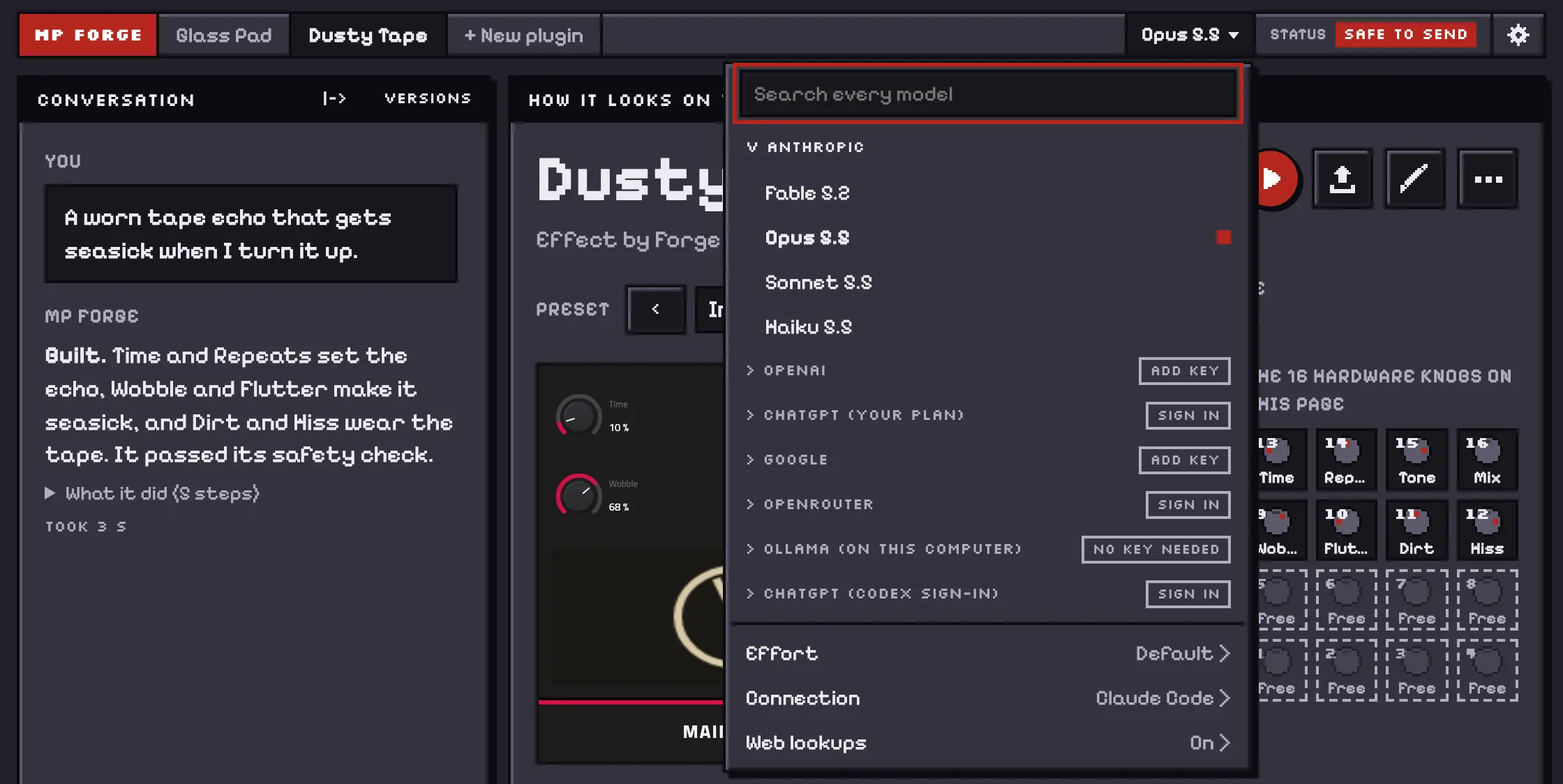
Only models that can do MP Forge’s work are listed: ones that hold a conversation and can use tools. Not every model can look at pictures you add.
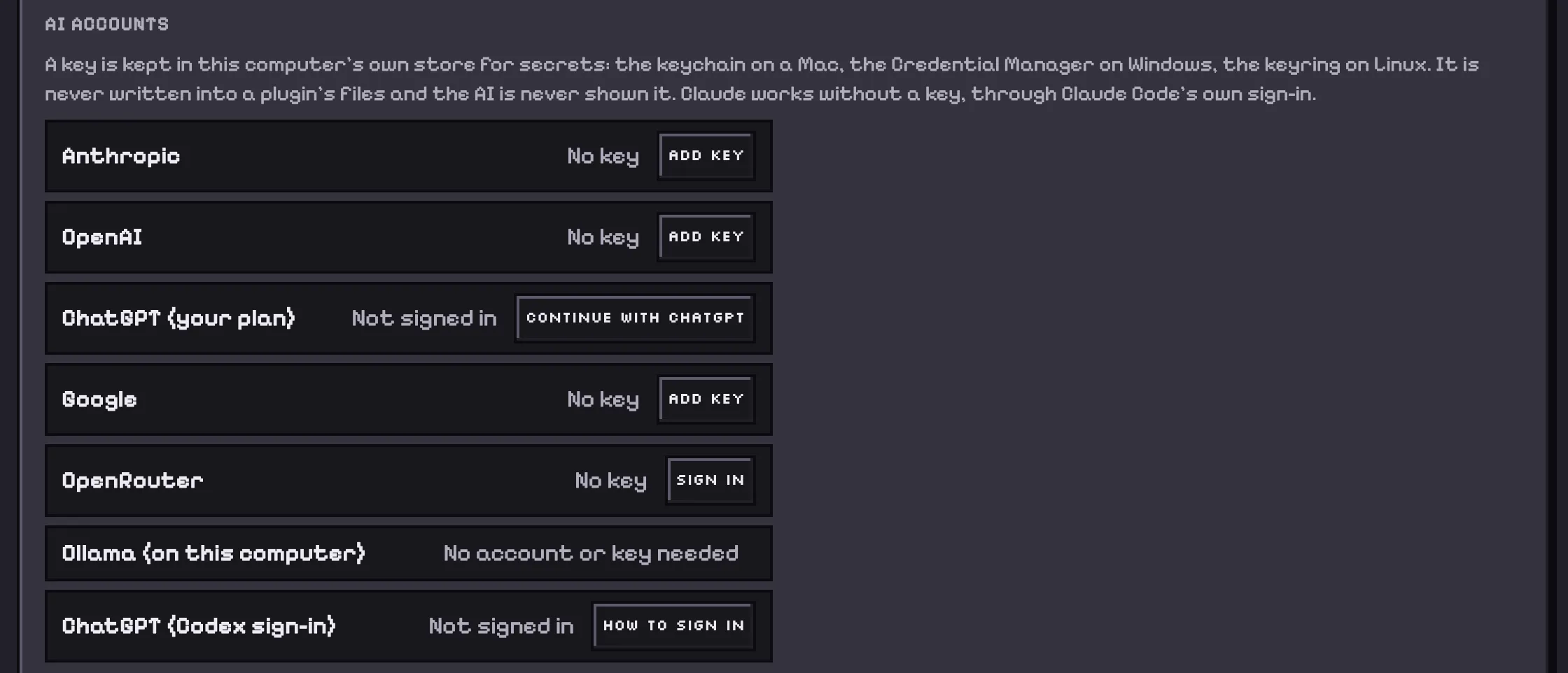
The first time you pick a model from a service you have not connected, MP Forge asks you to sign in or to add a key. You can also do that beforehand under Settings → AI accounts.
A model for each plugin
Section titled “A model for each plugin”Each plugin keeps the model you picked for it, and the button shows the model of the plugin that is open. So one plugin can be built by Claude while another is built by a model of another service, and you can give a plugin a different model at any time: the next change you ask for is made by that one.
A new plugin starts with the model you picked last. So does a plugin that has not been given one yet. Effort, Connection and Web lookups are the same for every plugin.
The services
Section titled “The services”| In the menu | How you connect it |
|---|---|
| Anthropic (Claude), through Claude Code | Install Claude Code from claude.com/claude-code and sign in to it. Keep it up to date with claude update: MP Forge needs version 2.1.259 or newer. MP Forge needs no key. This is what MP Forge starts on. |
| Anthropic (Claude), through the Claude API | Paste a key made at console.anthropic.com/settings/keys. |
| OpenAI | Paste a key made at platform.openai.com/api-keys. |
| ChatGPT (your plan) | Press CONTINUE WITH CHATGPT and sign in on OpenAI’s own page in your browser. This needs a paid ChatGPT plan, Plus or Pro. |
| ChatGPT (Codex sign-in) | Install Codex, OpenAI’s own tool, run codex login in a terminal, then press CHECK AGAIN. |
| Paste a key made at aistudio.google.com/apikey. | |
| xAI | Paste a key made at console.x.ai. |
| Mistral | Paste a key made at console.mistral.ai/api-keys. |
| DeepSeek | Paste a key made at platform.deepseek.com/api_keys. |
| OpenRouter | Press SIGN IN IN YOUR BROWSER and approve MP Forge on OpenRouter’s page, or press PASTE A KEY INSTEAD. |
| Ollama (on this computer) | No account and no key. See below. |
For Claude, the menu’s Connection setting switches between Claude Code and the Claude API.
Models on your own computer
Section titled “Models on your own computer”With Ollama, the model runs on your computer and nothing you make is sent anywhere.
- Ollama has to be running. If it is not, the list says so: open Ollama, then open the list again.
- The model has to be one that can use tools. MP Forge lists only those.
- In Ollama’s settings, give models a context length of 64000 or more. With less, they lose track of what they were asked.
The other settings in the menu
Section titled “The other settings in the menu”Which of these the menu shows depends on the model you picked.
- Effort is how hard the model thinks. More is slower and uses more of your allowance.
- Web lookups lets the model look things up online while it works. Through OpenRouter each lookup is charged, about a cent, on top of what the model costs, so there it starts switched off.
Where your keys are kept
Section titled “Where your keys are kept”A key is kept in your computer’s own store for secrets: the keychain on a Mac, the Credential Manager on Windows, the desktop’s Secret Service on Linux. It is never written into a plugin’s files, and the AI is never shown it. When you sign in on a service’s own page, you never type your password into MP Forge.
If a key for a service is already set in your computer’s environment, such as OPENAI_API_KEY, MP Forge
uses it when you have not given it one.
Settings → AI accounts shows which services are connected, and takes a key away or signs you out again.
What is sent to the AI
Section titled “What is sent to the AI”With any service that is not on your own computer, what you type, the plugin’s files and any pictures you add go to that service, under your account. With Ollama, nothing leaves your computer.
Settings → AI context sets how much the AI may hold in mind for one request before older material is dropped to make room. A lower limit costs less. A higher one lets it hold more at once.