Making your first plugin
What MP Forge can build
Section titled “What MP Forge can build”- An effect changes sound that is played through it. It hears no notes.
- An instrument makes its own sound when notes are played. A sequencer or arpeggiator has to be an instrument that makes its own sound.
- A plugin’s screen is a touch screen of pages. Each page holds up to sixteen controls: knobs, faders and switches, with pictures and artwork behind them. The MPC’s sixteen hardware knobs turn the controls of the page that is showing.
- It can play sound files you add, and it comes with a handful of presets. The first is always called Default: it is how the plugin sounds when it loads, and choosing it brings the plugin back to that.
Some things are out of reach. A plugin cannot send notes to the MPC or control other plugins. It runs on a small computer inside the MPC, so nothing that needs heavy number work: no long convolution reverbs, no huge numbers of voices.
Start a new plugin
Section titled “Start a new plugin”Press + New plugin in the top bar.
- Its name. Up to 32 characters. It is shown on the MPC.
- Your name, shown as its maker. Your name or brand. It cannot be changed later.
- Effect or Instrument.
- Describe it in the message box, in plain words.
- Press BUILD IT.
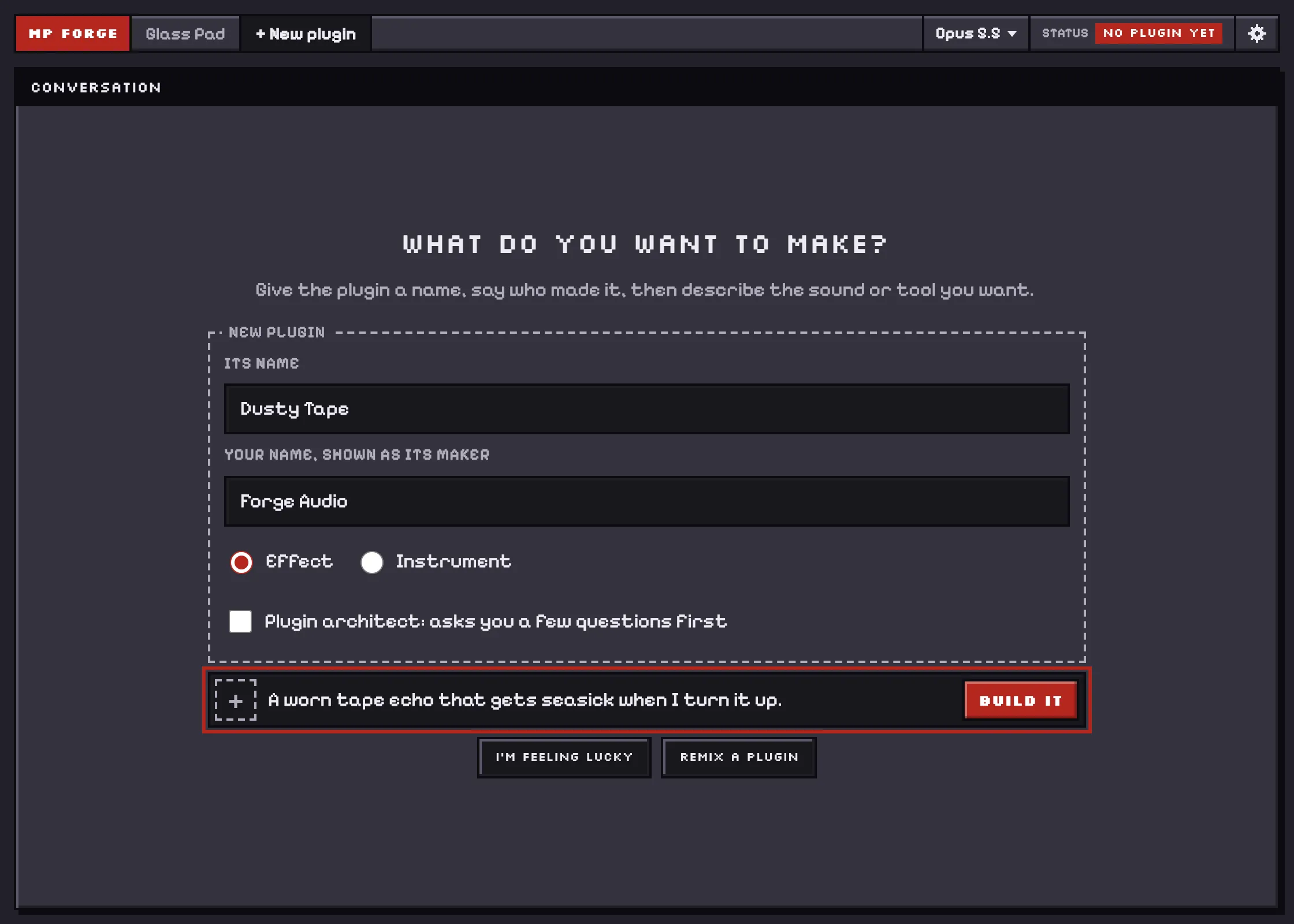
The + beside the message box adds things to go with your words:
- A picture for the AI to look at: a sketch, a screenshot, a photo of gear. It is not built into the plugin.
- A sound file for the plugin to play, WAV or MP3: a one-shot, a loop, a wavetable. It travels to the MPC with the plugin. One file can be up to 16 MB, and a plugin holds up to 64 files and 64 MB in all.
If you have no idea yet
Section titled “If you have no idea yet”- I’M FEELING LUCKY rolls the dice for a theme, looks for something new and interesting in it, and builds a plugin from what it finds.
- REMIX A PLUGIN lets you pick a plugin from the Open MPC catalog, the community’s list of open plugins for the MPC, and builds your own version of it. MP Forge works from what the original’s makers wrote about it and how its screen looks. None of its code is copied or installed. Credit the original if you share your remix.
- Tick Plugin architect to be asked a few questions about your idea first, with choices for each.
While it is being built
Section titled “While it is being built”The conversation shows what the AI is doing, step by step. STATUS in the top bar says WORKING, BUILDING or CHECKING. To end the work, press STOP.
You need not wait to say what comes next. Type it and press Enter or QUEUE IT: it waits under the work in progress and goes out by itself once that work has ended well. SEND NOW on a waiting request stops the work in hand and sends it at once, and REMOVE takes it back. If the work fails or you stop it, what was waiting stays put until you send it. Requests that are waiting are not kept when MP Forge is closed.
The AI works on up to five plugins at once. While one is being built you can start another, or open one you made earlier and ask for a change. Each tab shows a mark while its plugin is being worked on.
See it and hear it
Section titled “See it and hear it”When the plugin is built, its screen shows under HOW IT LOOKS ON YOUR MPC, as it will look on the MPC.
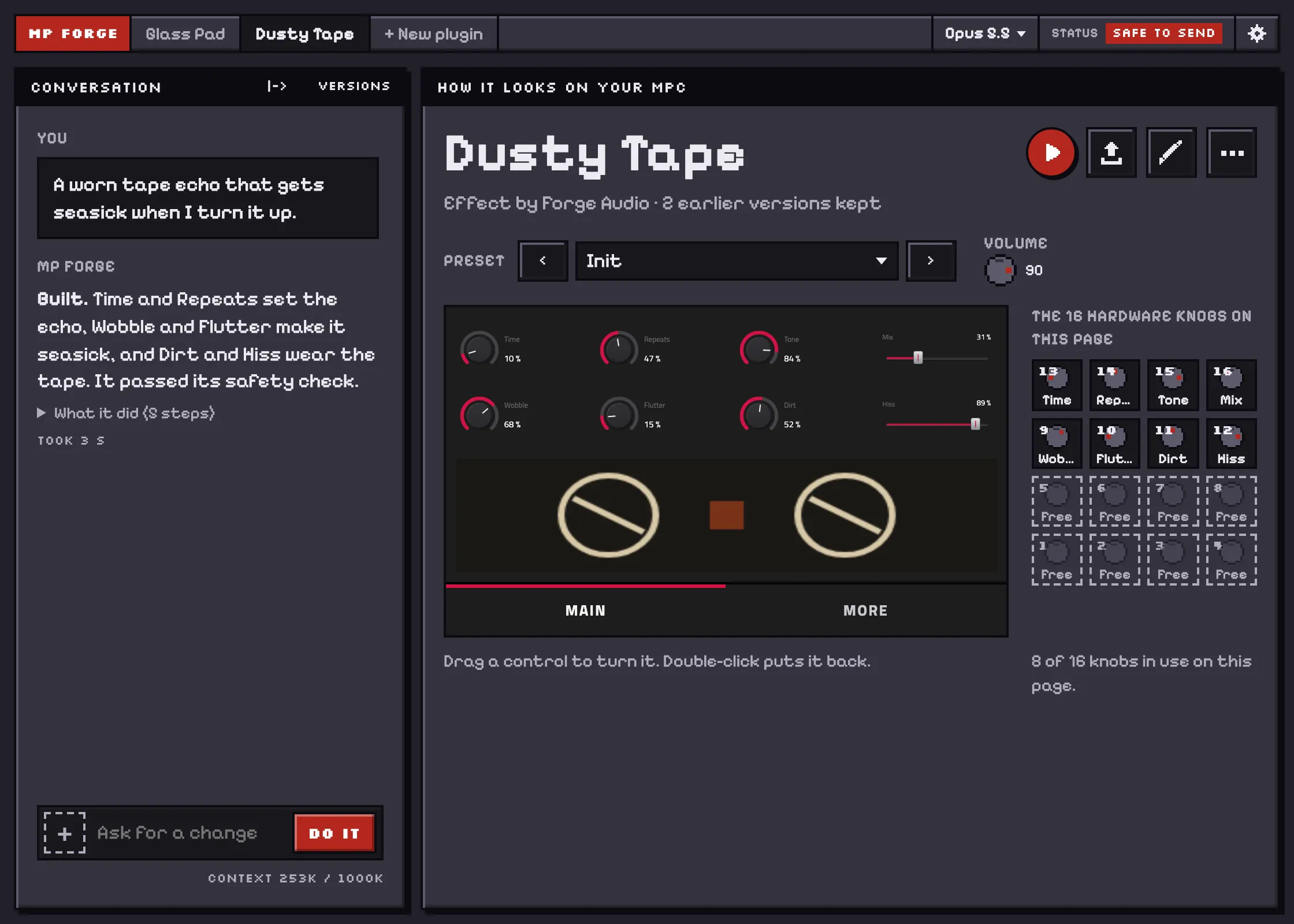
- Drag a control to turn it. Double-click puts it back.
- Press a page name along the bottom of the screen to change page.
- The 16 hardware knobs on this page says which of the MPC’s knobs turns what. To give a knob another control, press the pencil beside it, pick the knob, then press the control on the plugin’s screen that it should turn. Dashes march round the knob you picked. Whatever that knob turned before takes the knob the control gave up. Press the pencil again when you are done, and run the safety check before sending.
The round play button runs the real plugin through your computer’s speakers.
- An instrument gets a piano to play, with the mouse or from your keyboard: the keys A to K play one octave up from middle C, with the black notes on the row above.
- An effect is given a beat to work on. ON and OFF let you compare the sound with and without it. You can also choose a WAV or MP3 of your own to play through it. That file stays where it is on your computer and is never sent to your MPC.
- Preset steps through the presets built into the plugin, and Volume sets how loud MP Forge plays.
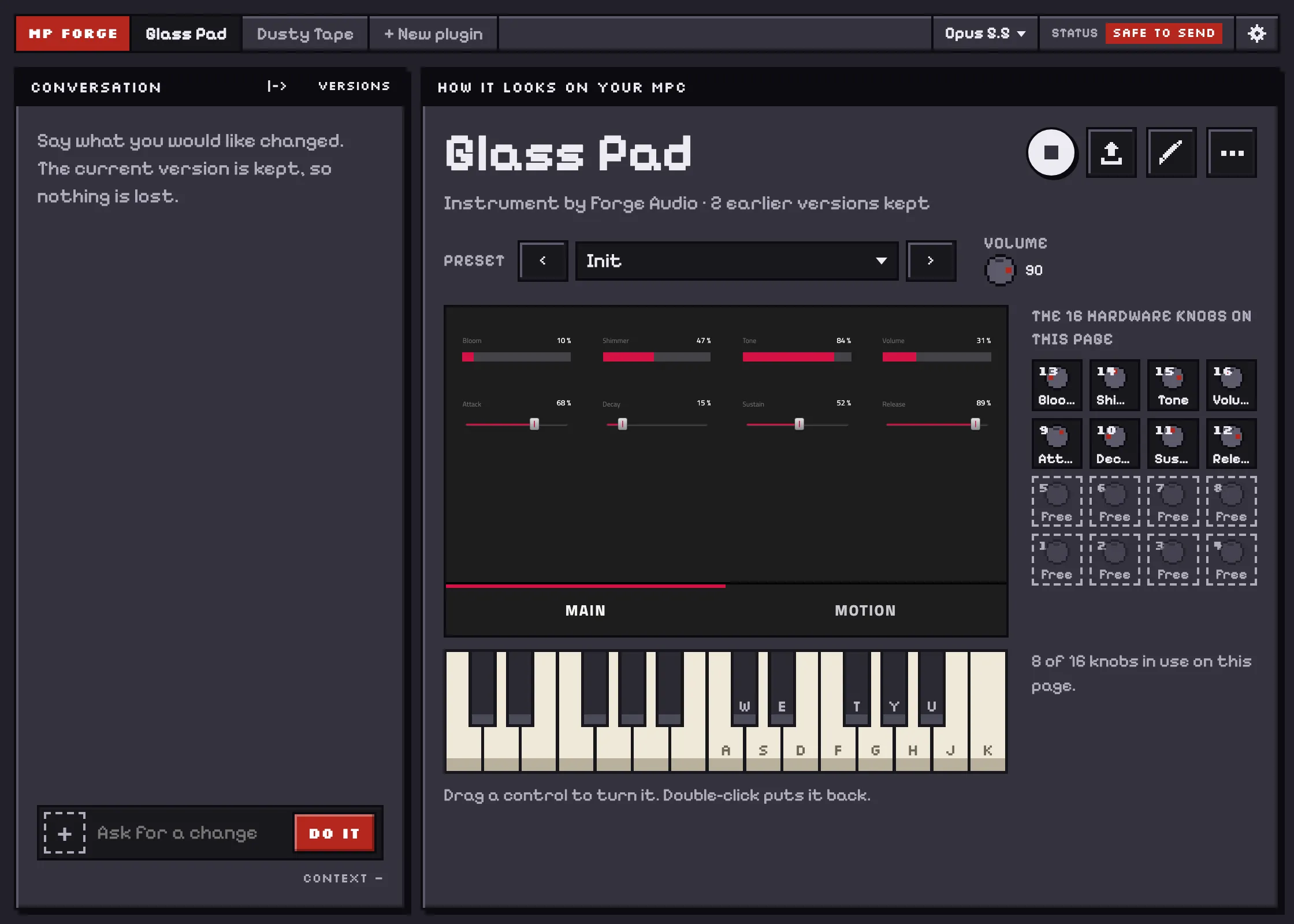
A plugin that did not pass its safety check is not played.
Ask for changes
Section titled “Ask for changes”Say what should change in the conversation and press DO IT. You can add a picture to show what you mean.
Go back a version
Section titled “Go back a version”A version is kept before every change. VERSIONS, at the top of the conversation, lays them out as a timeline. Step along it and go back to any of them. Going back never throws anything away, so you can step forward again. The plugin is built and checked again when you go back.
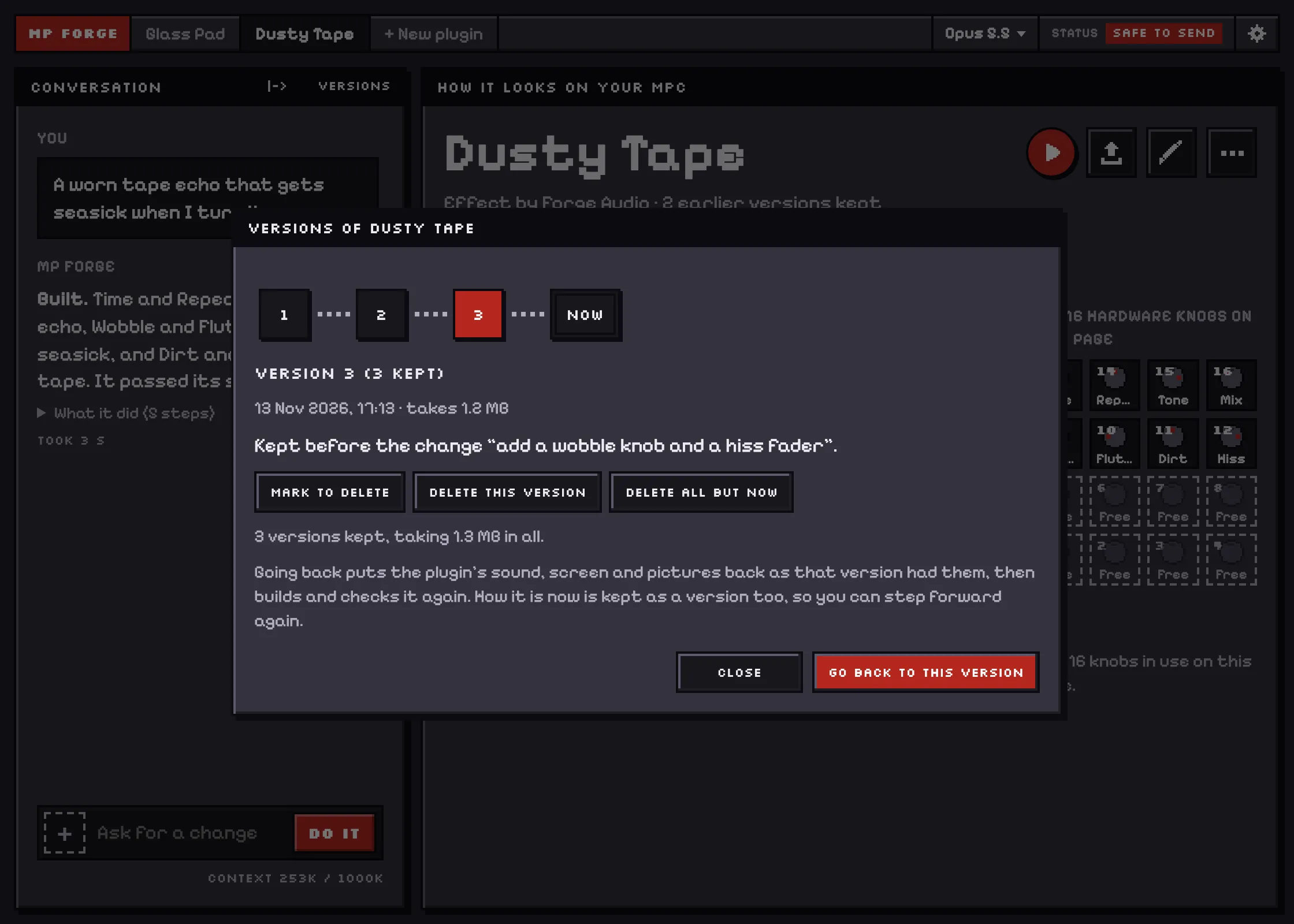
You can delete versions you no longer want from there. Settings → Versions kept of each plugin sets a limit, if you want the oldest thrown away automatically.
Edit the look by hand
Section titled “Edit the look by hand”The pencil above the plugin’s screen opens EDIT THE LOOK. There you can:
- move, resize and restyle the controls on each page,
- add your own artwork,
- copy one page’s design to another with COPY TO PAGE,
- pick a part of the screen and ask MP Forge to change just that, under Ask MP Forge.
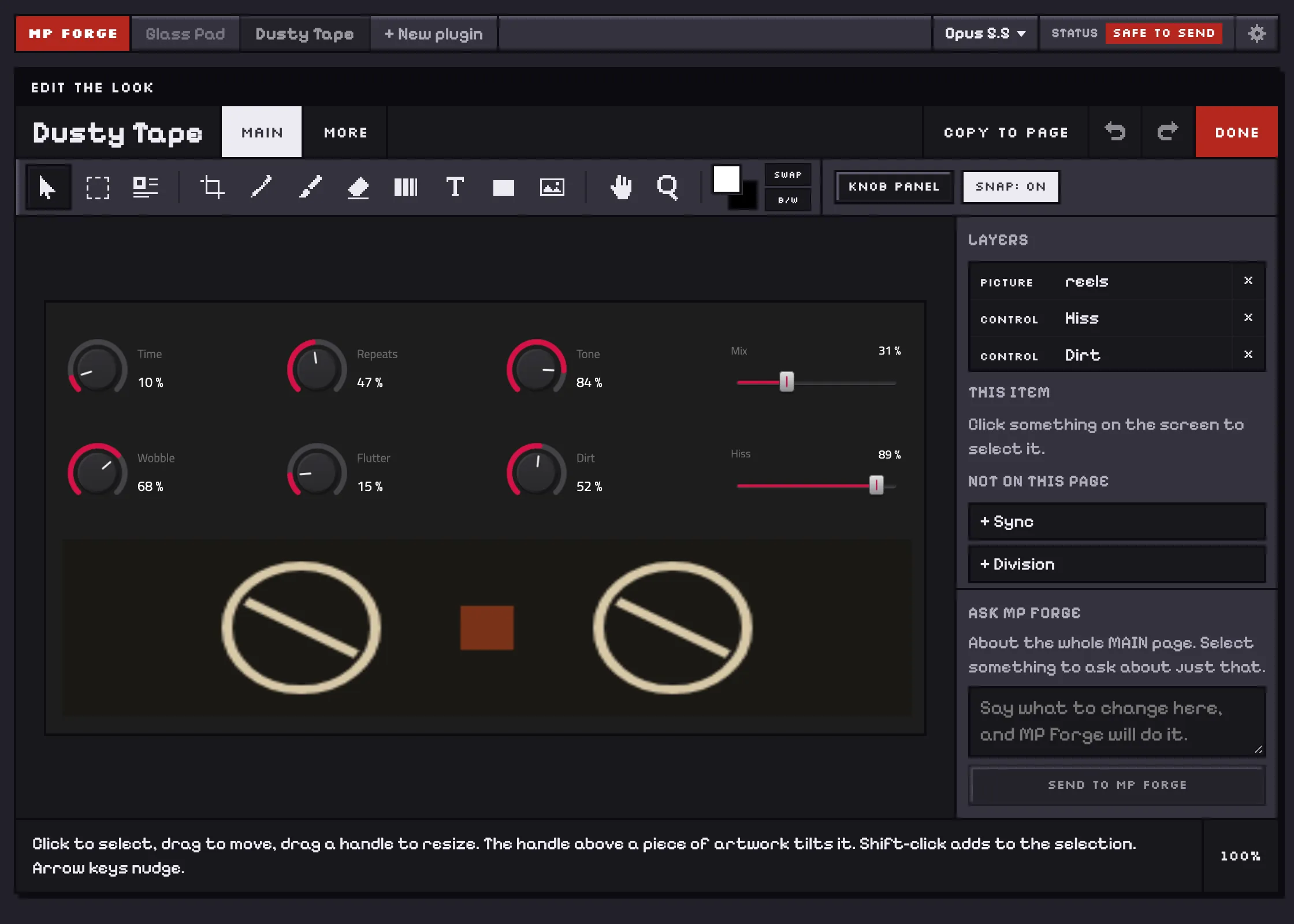
Press DONE to leave the editor. The last safety check was of the screen as it was before, so it no longer counts: press STATUS and run the check again before you send the plugin.
Rename or delete it
Section titled “Rename or delete it”The three dots above the plugin’s screen rename or delete the plugin.
- A renamed plugin is built and checked again. A copy already on your MPC stays there under its old name until you remove it.
- A deleted plugin’s folder goes to the Trash on your computer. A copy already on your MPC is not touched.
Where your plugins are kept
Section titled “Where your plugins are kept”Each plugin is a folder of its own on your computer, holding its code, its screen, its versions and your
conversation about it. MP Forge starts with a folder called MP Forge in your Music folder.
Settings → Where your plugins are kept shows the folder and lets you choose another, for instance one
that gets backed up.
Next: the safety checks, then sending it to your MPC.