Sending a plugin to your MPC
MP Forge sends a plugin over your network with Akai’s own install tool, which is part of Akai’s SDK. The
plugin goes into the VST2 Plugins folder of a USB drive or SD card in the MPC. It never goes onto the
MPC’s built-in storage, so pulling that drive out always takes the plugin away again.
Not tried everywhere yet. Sending has been tried by hand from a Mac and from Windows. Sending from Linux has not yet been tried by hand.
Set your MPC up once
Section titled “Set your MPC up once”The steps on the MPC itself are Akai’s, as its SDK gives them.
- Update the MPC to MPC OS 3.10.1 or later. Preferences → Info shows the version. Older versions cannot load third-party plugins.
- Switch on external plugins. Under Preferences → Enhancements (Beta), switch on Enable Enhancements and External Plugin Support, and read the warning the MPC shows. Plugins stay hidden until both are on.
- Switch on developer mode. This lets the MPC be reached over the network. Under Preferences → Info, tap the version value three times, the serial number value twice, and the firmware version once.
- Put a USB drive or an SD card in the MPC.
- Put the MPC on the same network as your computer, and note its address. The MPC shows it under its
Wi-Fi settings. It looks like
192.168.1.50.
Switch developer mode off again when you are done, if you are on a network you do not control.
What your computer needs
Section titled “What your computer needs”SSH, which is what carries the plugin across. Settings lists it under What MP Forge needs on this
computer. It comes with macOS. On Windows, add “OpenSSH Client” under Windows Settings, Optional
features. On Linux, install openssh-client.
Send it
Section titled “Send it”- Open the plugin. Its status has to say SAFE TO SEND. If it does not, see the safety checks.
- Press the Send to your MPC button above the plugin’s screen.
- Type in your MPC’s address. MP Forge remembers it for next time.
- Tick Restart the MPC’s app afterwards if you want the plugin to show up straight away. Anything unsaved on the MPC is lost when its app restarts, so save there first. The box is never ticked for you.
- Press SEND.
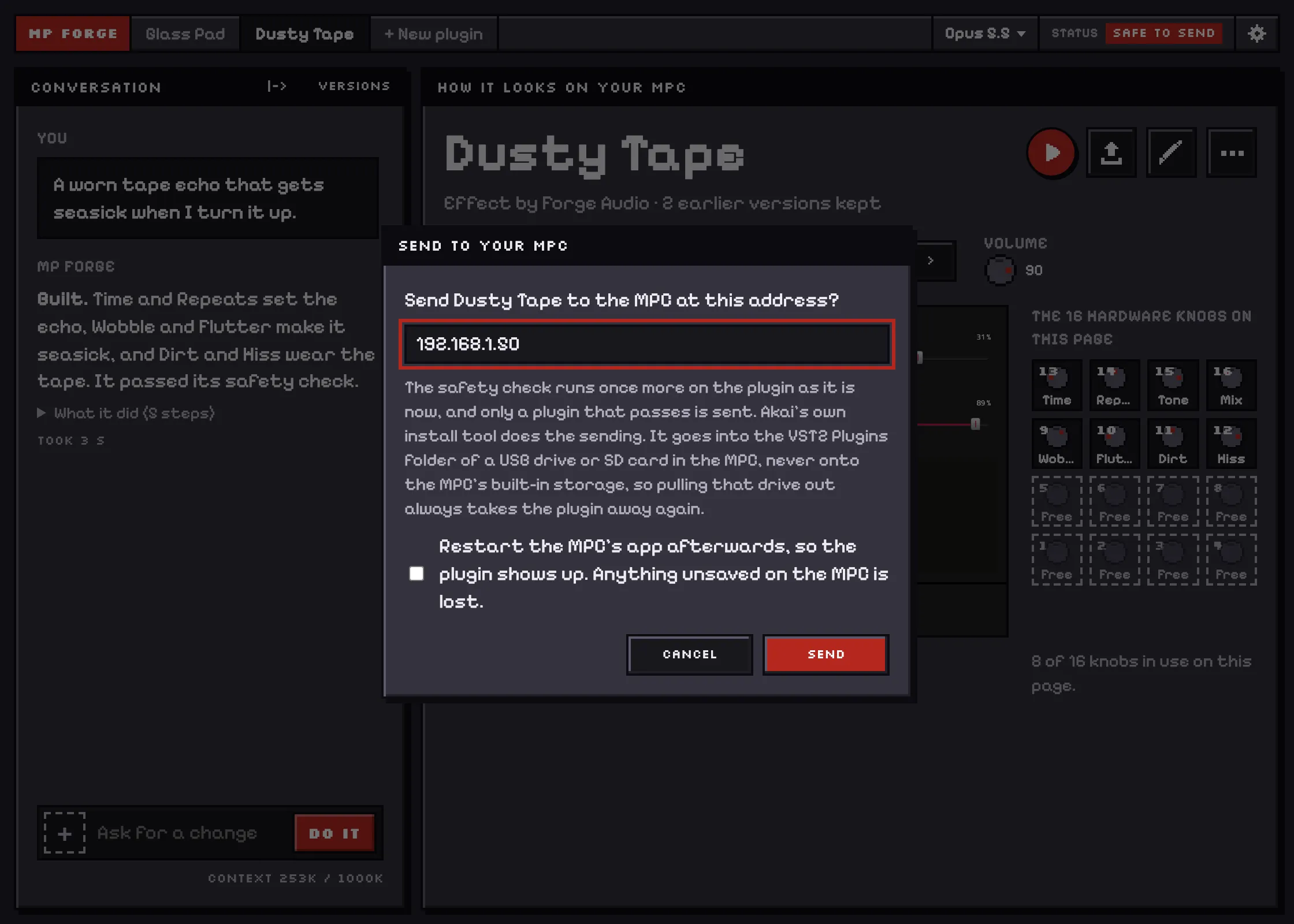
The safety check runs once more on the plugin as it is now. Only a plugin that passes is sent. The conversation then says which drive it went onto.
Find it on the MPC
Section titled “Find it on the MPC”The plugin shows on the MPC once the MPC’s app has been restarted. It is listed under External Plugins, in one of two lists:
- An instrument is in the list of instruments. Make a plugin track and open its list.
- An effect is in the list of effects. Tap an insert on any track to open it. An effect is never in the list of instruments, so it can look as if it is missing.
Settings for your MPC
Section titled “Settings for your MPC”Settings → Your MPC holds three things:
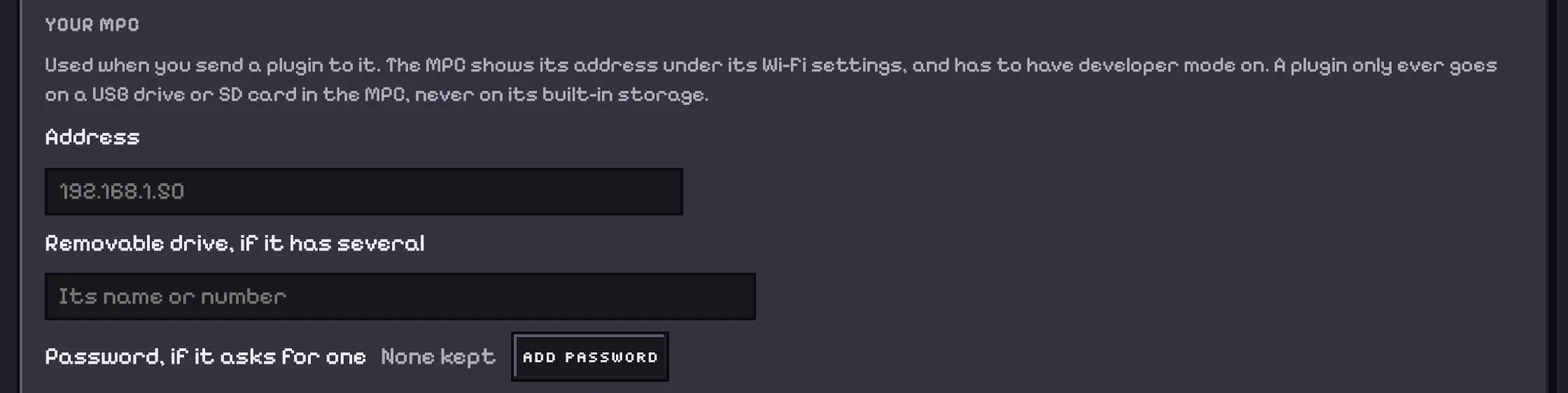
- Address. Where your MPC is on the network.
- Removable drive, if it has several. When the MPC has more than one USB drive or SD card in it, say which to use, by its name or its number. With only one, leave this empty.
- Password, if it asks for one. Only needed when your MPC asks for one. It is kept in your computer’s own store for secrets and handed to Akai’s install tool when a plugin is sent.
Sending a newer version
Section titled “Sending a newer version”Send it again. The plugin goes onto the drive in place of the copy already there.
A plugin you renamed is a different matter. The copy on your MPC stays there under its old name until you remove it.
Taking a plugin off the MPC
Section titled “Taking a plugin off the MPC”MP Forge does not remove plugins from an MPC. Pull the drive out, or delete the plugin’s folder from the
drive’s VST2 Plugins folder. Projects that used the plugin load without it.
Without the network
Section titled “Without the network”Akai’s SDK also describes copying a plugin by hand: the built plugin is a folder named
<Maker> - VST - <Name>, and it goes into a folder named exactly VST2 Plugins at the root of a USB drive
or SD card. MP Forge builds that folder inside the plugin’s own folder on your computer, under build.
MP Forge has no button for this yet. If you copy it by hand, do it only when the plugin’s status says
SAFE TO SEND.